Adding a GPU Node to My Kubernetes Cluster
23/01/2026
When Good Hardware Sits Idle
I have a gaming PC in my homelab doing double duty—sometimes gaming, mostly idle. RTX 4080 Super, AMD Ryzen 7 9800X3D, 32GB RAM. It runs Proxmox, which lets me spin up a Windows VM for gaming when I want, but the rest of the time? The GPU just sits there. In this economy.
Meanwhile, my Kubernetes cluster is running Text Embedding Inference on CPU to serve text embedding models. It works fine—but a 2s batch embedding latency is teetering at the edge of unacceptable. At the same time, there lied a whopping 16GB of VRAM sitting there gathering dust. Wasteful.
I had already tried running TEI via Docker on an Ubuntu VM on this machine. It worked, but resource scheduling was manual. I run multiple TEI workloads for Knowmeld—one for embedding documents, and another for embedding queries. Managing them separately is tedious.
So I decided to add a proper k3s worker node. The node is called Ogun, named after the Yoruba orisha of iron and technology. Fitting.
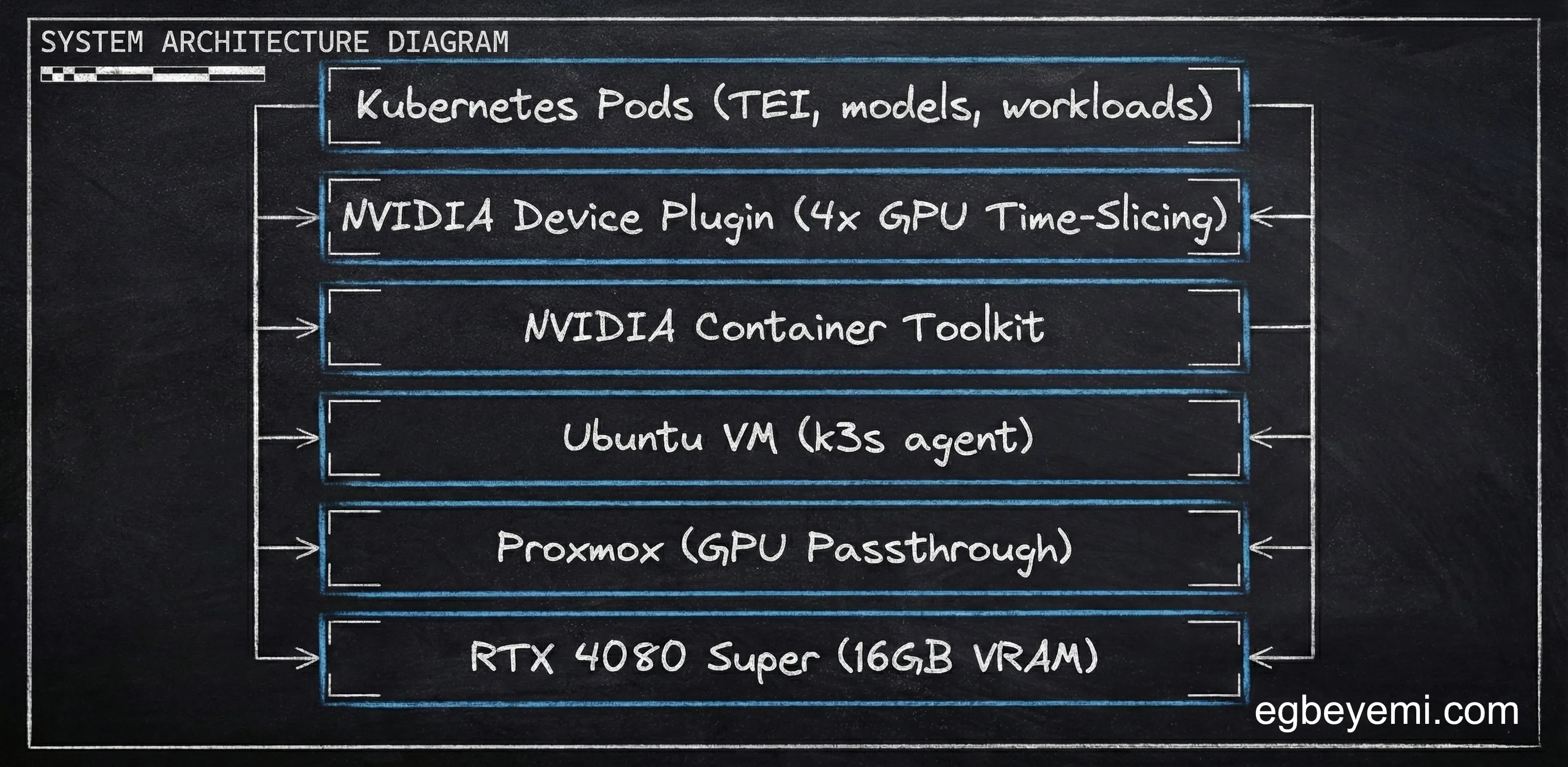
The Setup: Proxmox → Ubuntu VM → k3s Agent
The architecture is straightforward:
- Proxmox on bare metal (GPU pass-through to VMs)
- Ubuntu VM as the K3S worker
- GPU pass-through to the Ubuntu VM
- k3s agent connecting to my existing cluster
I am not covering the proxmox GPU pass-through setup here—that is its own article. But once the Ubuntu VM had GPU access, the next challenge was making Kubernetes aware of it.
Step 1: NVIDIA Drivers
First: get the GPU recognised by the Ubuntu VM.
Ubuntu’s ubuntu-drivers package makes this straightforward:
sudo apt install ubuntu-drivers-common
ubuntu-drivers list
The latest driver was version 580. Installing the server variant for headless operation:
sudo ubuntu-drivers install nvidia:580-serverReboot, then verify:
nvidia-smiGPU showed up. First milestone cleared.
Step 2: NVIDIA Container Toolkit (Learning From Past Mistakes)
To let containers access the GPU, you need the NVIDIA Container Toolkit.
I had already learned this lesson the hard way when setting up the Docker GPU Workload months earlier: rootless mode is a disaster for GPU access. Containers can’t see the GPU, debugging is a nightmare, and you waste entire afternoons for marginal security benefits. I’m not salty.
This time, I skipped rootless entirely and installed the toolkit normally:
sudo apt-get update && sudo apt-get install -y curl gnupg2

curl -fsSL https://nvidia.github.io/libnvidia-container/gpgkey | \
  sudo gpg --dearmor -o /usr/share/keyrings/nvidia-container-toolkit-keyring.gpg

sudo apt-get install -y nvidia-container-toolkit
Since this is a k3s agent and not full fat k8s, a special consideration has to be made, because k3s does not run containerd as a separate service. Standard NVIDIA guides tell you to configure containerd, but the default command updates the wrong config file.
The configure command needs to be pointed to k3s’s containerd config:
sudo nvidia-ctk runtime configure \
  --runtime=containerd \
  --config=/var/lib/rancher/k3s/agent/etc/containerd/config.toml
Then restart the k3s agent:
sudo systemctl restart k3s-agentWhy not set nvidia as the default runtime? NVIDIA’s docs recommend this, but I wanted more control. Most workloads in my cluster don’t need GPU access. Setting NVIDIA as the default means every pod that gets scheduled to that node gets GPU runtime overhead even when unnecessary.
Instead, I created a RuntimeClass that only GPU workloads use.
Step 3: RuntimeClass and the Device Plugin
Kubernetes needs two things to schedule GPU workloads:
- A
RuntimeClassthat understands how to run GPU containers - The NVIDIA Device Plugin exposing GPUs as schedulable resources
The RuntimeClass is simple:
apiVersion: node.k8s.io/v1
kind: RuntimeClass
metadata:
  name: nvidia
handler: nvidia
Now pods that need GPU access just specify runtimeClassName: nvidia in their spec. Everything else uses the standard runtime.
The device plugin gets installed via Helm. This is where things get interesting: GPU time-slicing.
The Magic of Time-Slicing
By default, Kubernetes treats GPUs as indivisible units. One pod = one entire GPU.
That is absurdly wasteful for some AI workloads. My embedding models use ~1GB of VRAM each. Without time-slicing, scheduling two embedding pods would require two full GPUs—15GB VRAM wasted on each.
Time-slicing changes the game. It lets Kubernetes over-allocate the GPU, treating one physical GPU as multiple logical GPUs. Workloads get scheduled thinking they have dedicated access, but they are actually sharing via time-slicing at the hardware level.
I configured the NVIDIA device plugin for 4 concurrent workloads:
runtimeClassName: nvidia
config:
  map:
    default: |-
      version: v1
      sharing:
        timeSlicing:
          resources:
            - name: nvidia.com/gpu
              replicas: 4
There is a catch: You are responsible for VRAM management. Kubernetes doesn’t track GPU memory usage. If you schedule 4 8GB models on a 16GB card, you’ll OOM. But for lightweight workloads like embeddings (1-2GB each), time-slicing is transformative.
CPU Instruction Sets
When I deployed the device plugin, it immediately started crashing out:
nvidia-device-plugin-init Fatal glibc error: CPU does not support x86-64-v2The problem was that VMs created in Proxmox default to kvm64 CPU type. This is a compatibility CPU type that ensures VMs can migrate between physical CPUs. It exposes a minimal instruction set that works everywhere.
But the NVIDIA device plugin needs x86-64-v2 instructions. The minimal kvm64 set was not enough.
The fix is simple: Change the VM’s CPU type to host in Proxmox. This passes through the actual CPU instruction set instead of using a compatibility layer.
Is this bad? Not really, Proxmox uses kvm64 to enable live migration between nodes with different CPUs. If you’re not live-migrating (and you shouldn’t for a k3s agent), host is fine and gives full CPU performance.
After that change, the device plugin came online and the node started advertising 4 GPU slots.
What I Learned
1. Time-slicing is essential for AI Inference workloads
One 16GB GPU can serve 4+ embedding models if you configure time-slicing. Without it, you’re burning money.
2. k3s has its own containerd config path
Standard NVIDIA guides assume Docker or full Kubernetes. k3s does things differently—you need /var/lib/rancher/k3s/agent/etc/containerd/config.toml
3. RuntimeClass > default runtime
Setting NVIDIA as default adds overhead to every pod. RuntimeClass gives you surgical control—only GPU workloads pay the cost.
4. Rootless mode is still a bad idea for GPU workloads
I learned this months ago with Docker. Nothing has changed.
What’s Next
The node is online. The GPU is schedulable with 4 concurrent slots. Now I need to actually use it. This weekend, I am migrating the TEI workloads from CPU to GPU. Currently running at 1.9s per batch (best case) on CPU. Curious to see what GPU performance looks like.
I’ll write up the results next week.
Want to talk about Software/AI Infrastructure?